Multi-Tenant SaaS on DigitalOcean with Caddy, Cloudflare, Nginx, and Ploi
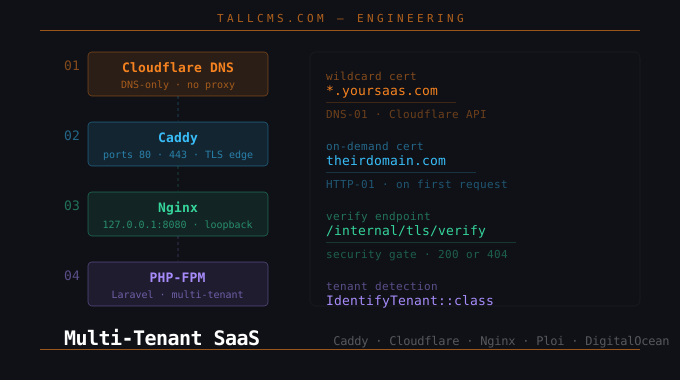
This guide covers how to set up Caddy as your TLS edge — backed by Cloudflare DNS — in front of a Ploi-managed Nginx + PHP-FPM stack on DigitalOcean, enabling automatic wildcard SSL for tenant subdomains and on-demand SSL for custom domains — with zero manual certificate management.
Why This Guide Exists
Most guides covering this architecture are written for Rails or Node. If you're building a multi-tenant Laravel SaaS — or a TallCMS user who installed the Multisite plugin — there is not much resources out there, let alone one that covers the full stack: Cloudflare for DNS, Caddy for automatic TLS, Ploi for server management, and Nginx + PHP-FPM for Laravel.
The problem we're solving: you want each tenant to get their own subdomain (tenant.yoursaas.com) and optionally a custom domain (theirdomain.com), both with HTTPS, provisioned automatically the moment they sign up. No manual cert issuance. No redeployments. No DevOps ceremony.
Ploi's built-in SSL (via certbot) can't do this. It only knows about domains you explicitly configure. Caddy can — using Cloudflare's DNS API for wildcard certificates and on-demand TLS for custom domains.
Architecture
Cloudflare DNS (DNS-only, no proxy)
  │
  ▼
Caddy  (ports 80 + 443, public)
  │  ← wildcard cert for *.yoursaas.com via Cloudflare DNS-01 API
  │  ← on-demand cert for custom tenant domains via HTTP-01
  ▼
Nginx  (127.0.0.1:8080, loopback only)
  │
  ▼
PHP-FPM → Laravel app
Caddy sits at the edge and owns all TLS. Nginx serves PHP internally on loopback — never exposed to the public internet. Ploi continues to manage deployments, queues, cron, and server configuration as normal.
Scaling path (when you're ready)
When you need multiple app servers, the only thing that changes is the reverse_proxy directive in your Caddyfile:
Caddy Droplet (dedicated edge)
  │ private VPC only (10.x.x.x)
  ├── App Droplet A (Nginx + PHP)
  └── App Droplet B (Nginx + PHP)
Caddy proxies to private VPC IPs — traffic never touches the public internet between droplets. This is the correct way to do it; proxying between public IPs over unencrypted HTTP is what causes ISP/DPI security flags.
Prerequisites
A DigitalOcean Droplet running Ubuntu 22.04+ in your chosen region
Ploi managing your Laravel app on the droplet
PHP 8.x + Nginx installed via Ploi
A domain on Cloudflare (DNS-only mode, orange cloud off)
A Cloudflare API token with
Zone → DNS → Editpermission scoped to your domain
Part 1 — Cloudflare DNS
Add two A records pointing to your droplet's public IP:
Type | Name | Content | Proxy |
|---|---|---|---|
A |
|
| DNS only (grey) |
A |
|
| DNS only (grey) |
The wildcard record means every subdomain automatically resolves to your droplet. Caddy handles issuing the actual certificates.
Part 2 — Reconfigure Nginx via Ploi
Nginx needs to move off port 80/443 entirely. Caddy will own those ports. Nginx listens on 127.0.0.1:8080 — loopback only, never reachable from outside.
2.1 Main site Nginx config
In Ploi → your site → Nginx Config, replace the entire contents with:
Before copying: replace every instance of
yoursaas.comwith your actual domain, and updatephp8.x-fpm.sockto match your PHP version (e.g.php8.2-fpm.sockorphp8.5-fpm.sock). You can find your exact PHP socket path by runningls /run/php/on your server.
# Ploi Webserver Configuration, do not remove!
include /etc/nginx/ploi/yoursaas.com/before/*;

server {
    listen 127.0.0.1:8080;

    root /home/ploi/yoursaas.com/public;
    server_name _;

    index index.php index.html;

    add_header X-Frame-Options "SAMEORIGIN";
    add_header X-XSS-Protection "1; mode=block";
    add_header X-Content-Type-Options "nosniff";

    charset utf-8;

    # Ploi Configuration, do not remove!
    include /etc/nginx/ploi/yoursaas.com/server/*;

    location / {
        try_files $uri $uri/ /index.php?$query_string;
    }

    access_log off;
    error_log /var/log/nginx/yoursaas.com-error.log error;

    location = /favicon.ico { access_log off; log_not_found off; }
    location = /robots.txt  { access_log off; log_not_found off; }

    error_page 404 /index.php;

    location ~ \.php$ {
        try_files $uri /index.php =404;
        fastcgi_split_path_info ^(.+\.php)(/.+)$;
        fastcgi_pass unix:/run/php/php8.x-fpm.sock;
        fastcgi_buffers 32 32k;
        fastcgi_index index.php;
        fastcgi_param SCRIPT_FILENAME $realpath_root$fastcgi_script_name;
        fastcgi_param DOCUMENT_ROOT $realpath_root;
        fastcgi_param HTTP_HOST $http_host;
        fastcgi_param HTTPS on;
        fastcgi_param SERVER_PORT 443;
        include fastcgi_params;
    }

    location ~ /\.(?!well-known).* {
        deny all;
    }
}

# Ploi Webserver Configuration, do not remove!
include /etc/nginx/ploi/yoursaas.com/after/*;
Key changes from the default Ploi config:
listen 127.0.0.1:8080— loopback only, never publicserver_name _— catch-all, since Caddy validates domains before forwardingAll SSL directives removed — Caddy owns TLS
fastcgi_param HTTP_HOST $http_host— passes the real hostname so Laravel can detect the tenantfastcgi_param HTTPS onandSERVER_PORT 443— tells Laravel the connection is HTTPS even though Nginx receives plain HTTP from Caddy; without this,url(),asset(), and$request->secure()generatehttp://URLs
2.2 Disable the Ploi-generated redirect config
Ploi creates an HTTP→HTTPS redirect at /etc/nginx/ploi/yoursaas.com/before/redirect.conf. Caddy handles this now, so comment it out rather than deleting it (Ploi expects the file to exist):
sudo tee /etc/nginx/ploi/yoursaas.com/before/redirect.conf > /dev/null << 'EOF'
# Redirect handled by Caddy — do not edit
# server {
#     listen 80;
#     listen [::]:80;
#     server_name www.yoursaas.com;
#     return 301 $scheme://yoursaas.com$request_uri;
# }
EOF
2.3 Edit the catchall
sudo nano /etc/nginx/sites-available/000-catchall
Replace with:
server {
    listen 127.0.0.1:8080 default_server;

    server_name _;
    server_tokens off;

    return 444;
}
Then remove it from sites-enabled to avoid a conflicting server_name _ warning (your main site config already covers this):
sudo rm /etc/nginx/sites-enabled/000-catchall
2.4 Disable Ploi SSL management
In Ploi dashboard → your site → SSL — remove or disable the Let's Encrypt certificate. Caddy will own all TLS from here. This prevents certbot and Caddy from fighting over port 80 during ACME challenges.
2.5 Test and reload
sudo nginx -t && sudo systemctl reload nginx

# Verify port 80 is free — should return nothing
sudo ss -tlnp | grep ':80\|:443'

# Only this should show:
# 127.0.0.1:8080  nginx
Part 3 — Install Caddy with Cloudflare DNS Plugin
The standard Caddy package doesn't include the Cloudflare DNS plugin needed for wildcard certificates. You need to build a custom binary using xcaddy.
# Install Go and git
sudo apt install -y golang-go git

# Install xcaddy
go install github.com/caddyserver/xcaddy/cmd/xcaddy@latest

# Add Go bin to PATH
echo 'export PATH=$PATH:$(go env GOPATH)/bin' >> ~/.bashrc
source ~/.bashrc

# Build Caddy with Cloudflare DNS plugin (takes 2-3 minutes)
cd ~
xcaddy build --with github.com/caddy-dns/cloudflare

# Install the binary
sudo mv ~/caddy /usr/bin/caddy
sudo chmod +x /usr/bin/caddy

# Verify the plugin is included
caddy list-modules | grep cloudflare
# Expected: dns.providers.cloudflare
Part 4 — Set Up Caddy as a System Service
Since we built a custom binary, we need to create the system user and service manually.
# Create caddy system user
sudo groupadd --system caddy
sudo useradd --system \
    --gid caddy \
    --create-home \
    --home-dir /var/lib/caddy \
    --shell /usr/sbin/nologin \
    --comment "Caddy web server" \
    caddy

# Create directories
sudo mkdir -p /etc/caddy
sudo mkdir -p /var/log/caddy
sudo chown -R caddy:caddy /var/log/caddy

# Create the systemd service
sudo tee /etc/systemd/system/caddy.service > /dev/null << 'EOF'
[Unit]
Description=Caddy Web Server
Documentation=https://caddyserver.com/docs/
After=network.target network-online.target
Requires=network-online.target

[Service]
Type=notify
User=caddy
Group=caddy
EnvironmentFile=/etc/caddy/caddy.env
ExecStart=/usr/bin/caddy run --config /etc/caddy/Caddyfile
ExecReload=/usr/bin/caddy reload --config /etc/caddy/Caddyfile --force
TimeoutStopSec=5s
LimitNOFILE=1048576
PrivateTmp=true
ProtectSystem=full
AmbientCapabilities=CAP_NET_BIND_SERVICE

[Install]
WantedBy=multi-user.target
EOF

sudo systemctl daemon-reload
sudo systemctl enable caddy
Part 5 — Configure Caddy
5.1 Create a Cloudflare API Token
Caddy needs permission to create and delete DNS records on your behalf to complete the DNS-01 challenge for wildcard certificates. Here's how to create a scoped token:
Go to dash.cloudflare.com → click your profile avatar (top right) → My Profile
Click API Tokens in the left sidebar → Create Token
Click Use template next to Edit zone DNS
Under Zone Resources, set it to Specific zone → select
yoursaas.comLeave everything else as default → click Continue to summary → Create Token
Copy the token immediately — Cloudflare won't show it again
5.2 Environment file
sudo tee /etc/caddy/caddy.env > /dev/null << 'EOF'
CF_API_TOKEN=your_cloudflare_api_token_here
EOF

sudo chmod 600 /etc/caddy/caddy.env
5.2 Caddyfile
sudo tee /etc/caddy/Caddyfile > /dev/null << 'EOF'
{
    email you@yoursaas.com

    on_demand_tls {
        ask http://127.0.0.1:8080/internal/tls/verify
    }

    log {
        output file /var/log/caddy/access.log
        format json
    }
}

# Root domain
yoursaas.com {
    reverse_proxy 127.0.0.1:8080 {
        header_up Host {host}
        header_up X-Real-IP {remote_host}
    }
}

# www redirect
www.yoursaas.com {
    redir https://yoursaas.com{uri} permanent
}

# Wildcard subdomains — DNS-01 challenge via Cloudflare API
*.yoursaas.com {
    reverse_proxy 127.0.0.1:8080 {
        header_up Host {host}
        header_up X-Real-IP {remote_host}
    }

    tls {
        dns cloudflare {env.CF_API_TOKEN}
    }
}

# Custom tenant domains — on-demand TLS (HTTP-01 challenge)
:443 {
    tls {
        on_demand
    }

    reverse_proxy 127.0.0.1:8080 {
        header_up Host {host}
        header_up X-Real-IP {remote_host}
    }
}
EOF
How it works:
yoursaas.com— your marketing/main site, standard HTTPSwww.yoursaas.com— permanent redirect to root*.yoursaas.com— wildcard cert issued once via Cloudflare DNS-01 challenge; covers every tenant subdomain automatically:443— catches any other domain (custom tenant domains); before issuing a cert, Caddy calls your/internal/tls/verifyendpoint to check the domain is legitimate
5.3 Format and validate
sudo caddy fmt --overwrite /etc/caddy/Caddyfile
sudo caddy validate --config /etc/caddy/Caddyfile
5.4 Start Caddy
sudo systemctl start caddy
sudo systemctl status caddy

# Verify Caddy owns ports 80 and 443
sudo ss -tlnp | grep ':80\|:443'
# Expected:
# *:80    caddy
# *:443   caddy
# 127.0.0.1:8080  nginx
Part 6 — The TLS Verify Endpoint in Laravel
This is the security gate. Before Caddy issues a certificate for any custom domain, it calls this endpoint. Return 200 to approve, 404 to deny.
Using TallCMS? The Multisite plugin handles this endpoint out of the box — no code needed. Skip to Part 7.
For vanilla Laravel, add this to routes/web.php:
Route::get('/internal/tls/verify', function (Illuminate\Http\Request $request) {
    $domain = $request->query('domain');

    if (!$domain) {
        return response('Missing domain', 400);
    }

    // Approve verified tenant subdomains
    if (str_ends_with($domain, '.yoursaas.com')) {
        $slug = str_replace('.yoursaas.com', '', $domain);
        $exists = \App\Models\Tenant::where('slug', $slug)
            ->where('active', true)
            ->exists();
        return $exists ? response('OK', 200) : response('Not found', 404);
    }

    // Approve verified custom domains
    $exists = \App\Models\Tenant::where('custom_domain', $domain)
        ->where('domain_verified', true)
        ->where('active', true)
        ->exists();

    return $exists ? response('OK', 200) : response('Not found', 404);
})->middleware('throttle:30,1');
Adapt the model and column names to match your own schema — for TallCMS multisite this would reference your Site model instead of Tenant.
Part 7 — Tenant Detection Middleware
Identify which tenant is being accessed on every request.
Using TallCMS? The Multisite plugin includes this middleware out of the box and registers it automatically — skip to Part 8.
For vanilla Laravel:
<?php
// app/Http/Middleware/IdentifyTenant.php

namespace App\Http\Middleware;

use App\Models\Tenant;
use Closure;
use Illuminate\Http\Request;

class IdentifyTenant
{
    public function handle(Request $request, Closure $next)
    {
        $host = $request->getHost();
        $baseDomain = 'yoursaas.com';

        if ($host === $baseDomain || $host === 'www.' . $baseDomain) {
            // Main marketing site — no tenant context
            return $next($request);
        }

        if (str_ends_with($host, '.' . $baseDomain)) {
            // Subdomain tenant
            $slug = str_replace('.' . $baseDomain, '', $host);
            $tenant = Tenant::where('slug', $slug)
                ->where('active', true)
                ->firstOrFail();
        } else {
            // Custom domain tenant
            $tenant = Tenant::where('custom_domain', $host)
                ->where('domain_verified', true)
                ->where('active', true)
                ->firstOrFail();
        }

        app()->instance('tenant', $tenant);

        return $next($request);
    }
}
Register in bootstrap/app.php:
->withMiddleware(function (Middleware $middleware) {
    $middleware->web(append: [
        \App\Http\Middleware\IdentifyTenant::class,
    ]);
})
Part 8 — Custom Domain Flow for Tenants
When a tenant adds a custom domain in your app:
Save it to the database as
custom_domain(unverified)Instruct the tenant to point their domain at your server — they have two options:
Verify by checking DNS resolution server-side (e.g.
dns_get_record()or a queue job)Set
domain_verified = trueThe next HTTPS request to that domain triggers Caddy's on-demand TLS automatically — Caddy calls
/internal/tls/verify, gets a 200, and Let's Encrypt issues the certificate. No manual steps, no redeployment.
DNS options for your tenants
Option A — CNAME record (recommended for subdomains)
Type    Name    Content
CNAME   www     yoursaas.com
Best for tenants who want www.theirdomain.com pointing to your app. Clean, and if your droplet IP ever changes you only update one place — your own A record — and all tenant CNAMEs follow automatically.
Option B — A record (required for root/apex domains)
Type    Name    Content
A       @       YOUR_CADDY_DROPLET_IP
Required when a tenant wants their root domain (theirdomain.com with no subdomain prefix) pointing to your app. Most DNS providers don't allow a CNAME on the apex/root domain — an A record is the only option here.
The tradeoff with A records is that if your droplet IP ever changes (e.g. you migrate servers), every tenant with an A record needs to update their DNS manually. For this reason it's worth documenting your IP as stable, or using a DigitalOcean Reserved IP so it never changes even if you replace the underlying droplet.
Using TallCMS? The Multisite plugin includes a custom domain management UI for tenants and handles DNS verification automatically — skip the manual implementation below.
Part 9 — Firewall
sudo ufw allow 22
sudo ufw allow 80
sudo ufw allow 443
sudo ufw deny 8080   # block external access to Nginx
sudo ufw enable
sudo ufw status
Part 10 — Verify Everything
# Cert is from Let's Encrypt via Caddy
curl -vI https://yoursaas.com 2>&1 | grep -A3 "SSL certificate"

# www redirects correctly
curl -I https://www.yoursaas.com
# → 301 to https://yoursaas.com

# TLS verify endpoint works
curl "http://127.0.0.1:8080/internal/tls/verify?domain=demo.yoursaas.com"
# → 200 if tenant exists, 404 if not

# Caddy logs are writing
sudo tail -f /var/log/caddy/access.log | jq
Ploi Survival Notes
Ploi may overwrite certain configs on deploy or SSL renewal events. Keep an eye on these:
What to watch | Check command | Fix |
|---|---|---|
redirect.conf restored with port 80 |
| Re-comment it out |
Ploi tries to renew SSL cert | Ploi SSL dashboard | Keep SSL disabled in Ploi |
Nginx restored to port 80 |
| Re-apply Nginx config |
Caddy cert storage |
| Never delete this directory |
Consider adding a post-deploy hook in Ploi:
sudo nginx -t && sudo systemctl reload nginx
Scaling to Multiple App Droplets
When you're ready to add a second app droplet:
Create a new droplet in the same DO region and VPC
Deploy your app via Ploi — Nginx listens on the private VPC IP (
10.x.x.x:8080) instead of loopbackSpin up a small dedicated Caddy droplet in the same VPC
Update your Caddyfile to proxy to both app droplets using private IPs:
reverse_proxy 10.x.x.1:8080 10.x.x.2:8080 {
    lb_policy round_robin
    health_uri /up
    health_interval 10s
    header_up Host {host}
    header_up X-Real-IP {remote_host}
}
Important: always use private VPC IPs (10.x.x.x) for inter-droplet traffic, never public IPs. Proxying between public IPs over plain HTTP is what causes ISP/DPI security warnings — the traffic travels over the public internet unencrypted after a TLS handshake at the edge, which looks like a MITM setup to strict network inspectors.
For multiple Caddy instances, share certificate storage via Redis to avoid Let's Encrypt rate limits:
{
    storage redis {
        host 10.x.x.x
        port 6379
    }
}
Summary
Layer | Responsibility |
|---|---|
Cloudflare DNS | Routes traffic to your droplet via DNS-only mode; provides DNS API for wildcard cert issuance |
Caddy | TLS termination, wildcard + on-demand certs via Let's Encrypt, HTTP→HTTPS redirect, reverse proxy |
Nginx | PHP serving on loopback only; never public-facing |
PHP-FPM | Laravel application execution |
Laravel | Security gate controlling which domains get certificates |
Ploi | Deployments, queues, cron, server management — unchanged |
This setup handles unlimited tenant subdomains and custom domains with zero manual certificate management, is genuinely production-ready on a single droplet, and scales horizontally by adding app droplets behind the Caddy edge with minimal config changes.
Try Ploi — Server Management Without the Headache
This entire setup was built on a Ploi-managed server. Ploi handles deployments, SSL, queues, cron jobs, database management, and more — so you can focus on building your SaaS instead of managing servers. If you're not on Ploi yet, you can sign up using the link below. It supports this blog and future guides like this one.
Try DigitalOcean — Simple, Reliable Cloud Infrastructure
This guide was built and tested on DigitalOcean Droplets. Predictable pricing, a clean UI, and a developer-friendly ecosystem make it a great home for Laravel SaaS products of any size. Sign up using the link below to get started.
Comments
No comments yet. Be the first to share your thoughts!